Add a member to a club
Last updated 5 June 2026
Adding someone to your club either links an existing GNZ member to your club or creates a brand-new member record. The form walks you through both — you always search first, so you don't accidentally create a duplicate of someone who already flies elsewhere.
Before you start
- You need to be a club administrator for the club you're adding to.
- Your club must have its member types set up. If it doesn't, the form tells you so and points a club administrator to Admin → Member Types (
/admin/member-types). Set those up first.
Step 1 — Open the Add Member form
Go to Members and click Add Member at the top of the list.

Step 2 — Choose the club
Under Add Member to which organisation?, pick the club you're adding the person to. If you administer only one club, it's already selected.

Step 3 — Search for the person
Under Search for Surname, start typing the person's surname. The system searches the national GNZ membership database — not just your club — so anyone who already flies anywhere in New Zealand will show up here.
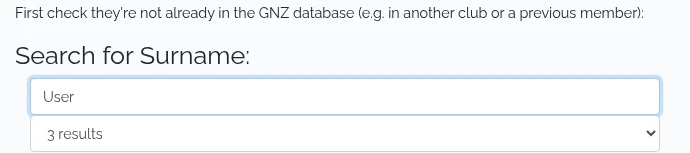
What you do next depends on whether you find them.
Found them — add an existing member
If the person appears, select them. The form shows their details so you can confirm it's the right person: Is [name] the person you're adding?, with their Current Club, GNZ Membership Type, City, and Date of Birth.
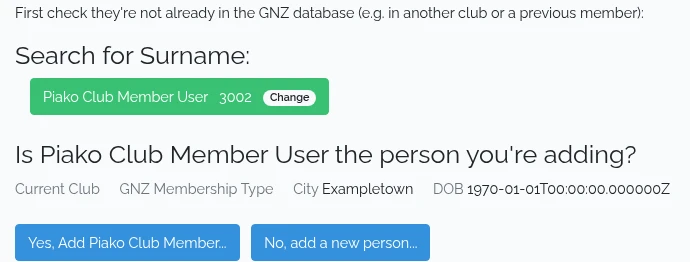
- Click Yes, Add [name]… to confirm the match. (If it's the wrong person, click No, add a new person… instead — see the next section.)
- Choose the Type of Club Member To Add As and, if needed, set the Start Date and GNZ Member Type.
- Check the contact details and correct anything out of date.
- Click Add [name] to [club].
That's it — the existing member is now linked to your club. The system shows Member added and opens their record so you can review it.
Can't find them — add a new person
If nobody matches, click I can't find them, add a new person… to create a fresh record.
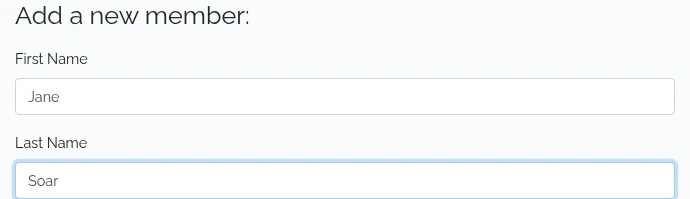
- Enter the First Name and Last Name (both required).
- Choose the Type of Club Member To Add As and the GNZ Member Type, and set the Start Date.
- Fill in the contact and personal details — Email, Date of Birth, Address, City, Post Code, Country (defaults to New Zealand), Mobile, and Gender.
- Click Add New Member.
The system shows Member added and opens the new member's record.
What happens next
- You're taken to the member's record, where you can add ratings or adjust their details.
- If you set a GNZ member type that needs head-office approval, GNZ is emailed a request automatically — the member's national status stays pending until GNZ approves it.
To add a qualification or rating to the member you just created, see Add a rating to a member.