Edit a member's contact details
Last updated 2 October 2026
A member's contact details — postal address, phone numbers, and email — are all edited from their record. Members can update their own details, and club administrators can update them for any member of a club they run.
Before you start
- You can edit your own contact details at any time.
- To edit someone else's, you need to be a club administrator of one of their clubs (the awards officer and GNZ administrators can edit anyone too).
Step 1 — Open the member's edit form
Go to Members, open the member, and click Edit Member at the top right.

Step 2 — Update the contact details
Contact details sit across a few cards on the edit form:
- Member Details holds the postal Address, City, Country, and ZIP/Post Code (with a link to the NZ Post postcode finder).
- Contacts holds the member's Email, Home Phone, Mobile, and Business Phone.
- Emergency Contact holds their next-of-kin's name, relationship, phone numbers, email, and address.
Edit whichever fields you need.
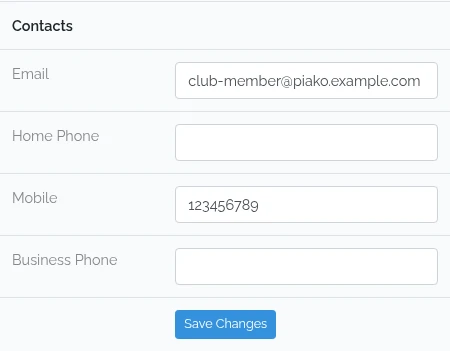
Step 3 — Save your changes
Each card has its own Save Changes button, and clicking any one saves the whole record. The page confirms Member Updated.
Keeping details private
The Privacy box in Member Details, "Keep contact details private from other GNZ members", hides the member's email, phone numbers, city and country from other members. It doesn't remove them from the membership list. Tick it if the member asks for their contact details to be kept private. Contact details privacy explains exactly what it hides and what it doesn't.